
Cumulus User’s Guide

1.Getting Started
1.1.Install Cumulus Application
To get started using Cumulus POS, first you will need to do the following:
1. Get the POS device number from RAMP.
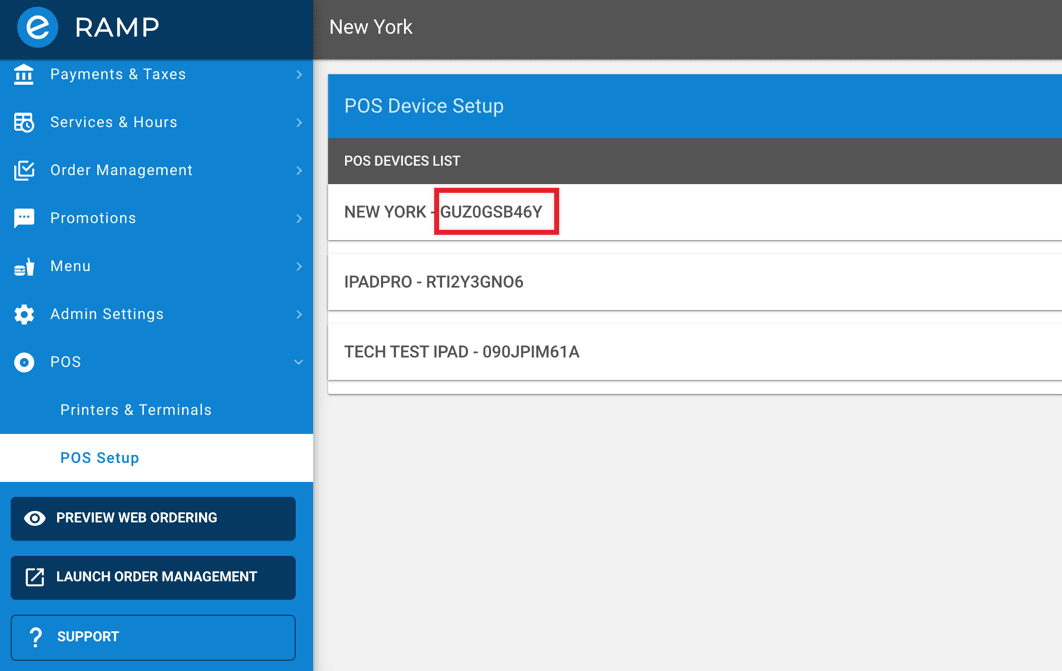
2. Install the application to your iPad.
Click on the play button to view the video tutorial on installing the Cumulus application.
1.2.Sign-in and Enter Orders
- Sign-in with your PIN
- Add a new drawer each start of the day
- Enter your orders and payments
- Sign-out
2.Start of a Workday
2.1.Open Cash Drawer
- Each start of the day, a new drawer should be opened
- Enter the amount of cash you will put in the cash drawer
3.End of a Workday
3.1.Close (checkout) Cash Drawer
- At the end of the day, close (checkout) the cash drawer
- Make sure to close all open ticket before you checkout the cash drawer for the day
- Count the money in the drawer and enter the amount into the POS
4.Enter a Dine-in Order
View the video clip to learn how to enter a dine-in order, send order to the kitchen and collect payment.
5.Edit an Existing Order
- Orders that have not been sent to the kitchen can be modified. Once modification is complete, press the Send button to send orders to the kitchen
- Notes can be added to each order
- Individual items can be voided
6.Add Multiple Seats to a Ticket
To keep track of customer’s orders, multiple seats can be added to an order.
7.Manage Carryout & Delivery Web Orders
Learn how to manage carryout and delivery orders from your customers who used eTab Web Ordering.
>
8.Void a Paid Ticket
To void a paid ticket, the manager or admin user will need to enter their PIN.
9.View Completed Orders
- To view all completed orders, tap on the COMPLETE tab
- Orders that are paid with a credit card will show a corresponding MX number
10.View Reports
Reports are available to view base on access. If the user has full access they can view all three reports.
11.Sync Data to RAMP
When changes are made in RAMP, data needs to be sync by pressing the Sync Data Now button.
12.Update Application to the Latest Version
Click on the Update New Version button to get the latest POS software updates.